AutoHotkey is a lightweight program that allows you to rebind keyboard, gamepad and mouse actions to alternative bindings.
The beauty of AutoHotkey is that you can specify hotkeys that are tied to specific applications.
This makes it perfect for rebinding device inputs for games since you can specify unique key bindings for any game even if the game doesn't natively support key mapping.
Much thanks to LovelyDogMeat for the detailed Nexus Forum Post which led to me trying it out, loving it and subsequently creating this guide.
See, not all mod comments are bad !
¶ Installation
You can install AutoHotkey through Winget (MSStore) or by downloading from autohotkey.com
These two methods are explained below.
¶ Winget
- Open the windows Command Line: WIN + "cmd" + ENTER
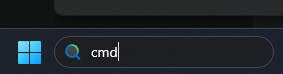
- Copy/Paste the following command
winget install AutoHotkey.AutoHotkey
- Press ENTER
¶ Manual Install
Download and install the executable from https://www.autohotkey.com/download/
Click on the Download EXE button then run the file when downloading is finished.
¶ General Hotkey Setup
The process of applying custom hotkeys with AutoHotkey follows the general steps:
- Create a new hotkey settings file (
*.ahk) - Open and edit the hotkey file in notepad (or any other simple text editor)
- Save changes
- Double-click on the newly created
.ahkfile to apply hotkey settings
¶ Hotkey Setup Example
Lets assume you want to rebind the Contextual Dodge (NUMPAD 8) key for the Dodge mod to your keyboard's ALT key.
-
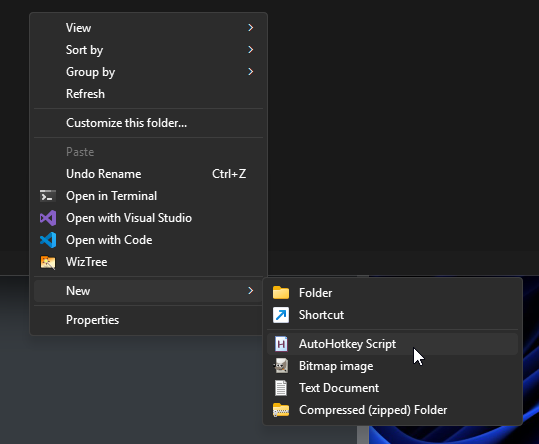
Inside of File Explorer, right-click on the background of any folder and select New → AutoHotkey Script
-
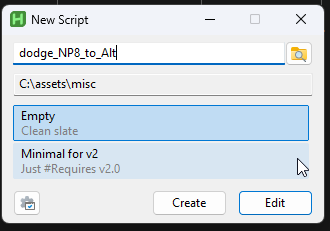
Type in a name for the script
-
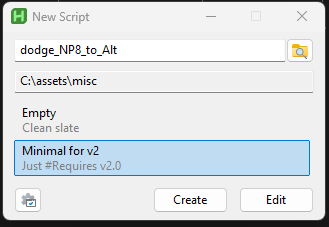
Choose Minimal for v2
-
Click Edit
-
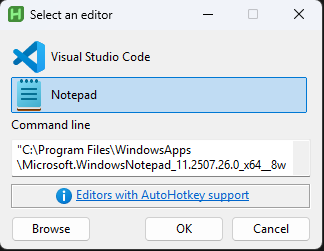
Select the editor you prefer and then click OK
I will be using notepad since every system should have that as an available option.
-
You should now see a new notepad window which only contains a single line at the top
#Requires AutoHotkey v2.0copy and paste the following lines just below the
#Requiresline:#HotIf WinActive("ahk_exe Stalker2-Win64-Shipping.exe") Alt::Numpad8 #HotIfLines explained:
-
#HotIf WinActive("ahk_exe Stalker2-Win64-Shipping.exe")-
#HotIf→ Creates a context sensitive hotkey -
WinActive("ahk_exe ...")→ validate if a specific .exe is active (running) -
Stalker2-Win64-Shipping.exe→ the name of the exe to validate.GamePass users:
You will want to use
Stalker2-WinGDK-Shipping.exeinstead.
-
-
Alt::Numpad8→ The Alt key will emulate pressing the Numpad 8 key. -
#HotIf→ closes the if statement started on line 1
-
-
Save and close the file.
-
Double click on the file within file explorer
-
Open game and test HotKey is working.
¶ Key Reference
The following is a non-exhaustive list of key names that can be used in the key::key mapping pattern ( Alt::Numpad8 as shown in the previous section)
See the AutoHotkey key list documentation for all possible key names
Name |
Description |
|---|---|
A-Z |
Alphabetical Keys -- Must be capital letters |
0-9 |
Numeric Keys |
Numpad0 - Numpad9 |
NumpadKeys |
F1 - F24 |
The 12 or more function keys at the top of most keyboards. |
LButton |
Primary mouse button. |
RButton |
Secondary mouse button. |
MButton |
Middle or wheel mouse button. |
Enter |
Enter Key |
Backspace |
Backspace Key |
¶ References
Full documentation for AutoHotkey