Once a collection in Vortex is ready, the curator can share it on the Nexus Mods website by publishing it. We'll handle how to do that in this page, along with giving you some tips and tricks to make your page look better.
¶ Uploading a collection from Vortex
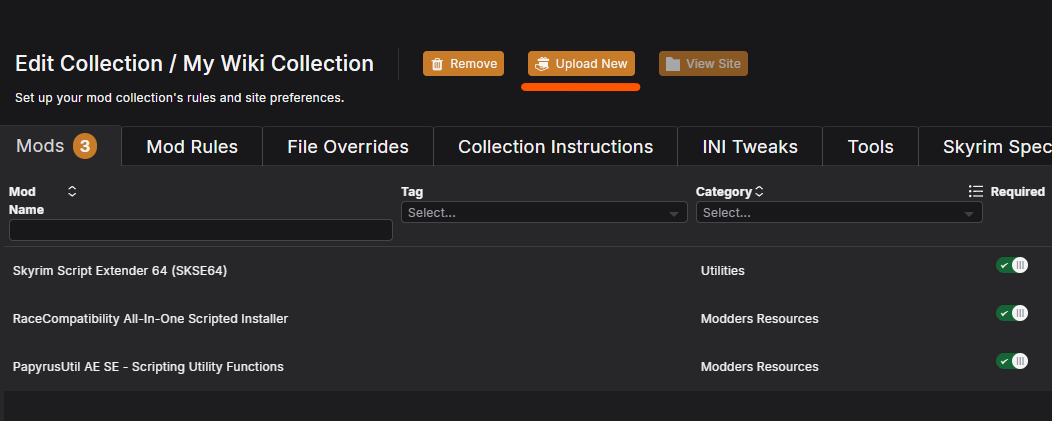
Collections can be uploaded from the edit view in the Workshop using the "Upload" button above the table. This will prompt Vortex to gather up all the mod information and metadata and push it to the Nexus Mods website. Depending on how complex a collection is, this can take a few seconds. If you are using bundled assets in your collection, depending on the size, this will take a lot longer. For this reason it may be a good idea to avoid bundled assets and upload some of your files as mods, if it is all complaint with File Submission Guidelines. You can learn about bundled assets and external mods here
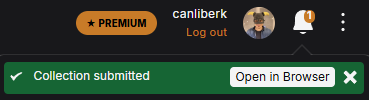
Once the collection has been successfully pushed to the website, you can view your collection page if you click on the notification that says "Collection submitted" and click on the "Open in Browser" button.
Some things to note here:
- Before uploading your collection, make sure to double check your list and metadata.
- When adding / removing / updating mods, you may have forgotten to apply some changes. Mods with bad metadata will show up with warning signs and their names also will look different.
- It is a good idea to check your metadata sections for your collection one last time before publishing the update. Sometimes you will see that your changes to instructions were resetted or not saved since you last edited it, especially if you forgot to save changes and restarted Vortex since then.
- Note that you won't be able to upload ANY collections if you have any unresolved conflicts. Even if you don't include any of the conflicting mods in your list, system won't allow you to update or upload any collections if you even have a single confliction.
If you happen to encounter any problems uploading your collection, it would be a good idea to try it again and then check these one by one if it persists:
- Do you have lots of binary patches, replicate options and other mod options in place? If you can, consider lowering the number of these mods. If you can't, take a look at each of these mods one by one. The culprit could be a wrongly set up replicate or binary patch option.
- Do you have lots of bundled assets? Since the way Vortex and Nexus handles your bundled assets are different than how other mods are handled, sometimes big bundled assets can be hard to upload to the server directly.
- Check your ISP and VPN. Some countries and some ISPs have strict upload restrictions when uploading big files.
- Consider reaching out to Nexus support or other curators on Nexus Forums or on Nexus Discord servers.
¶ Preparing to publish a collection
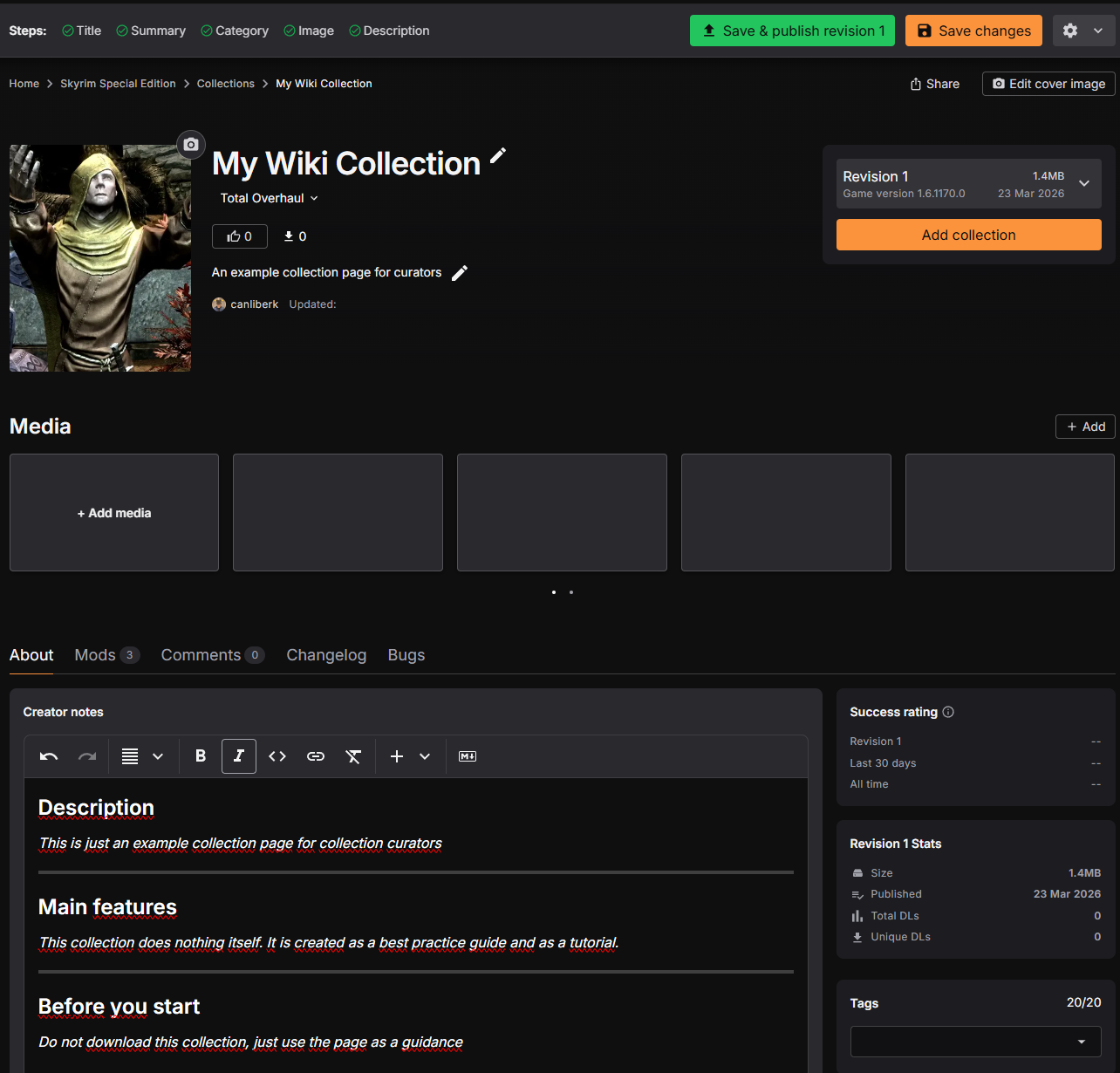
When sharing a collection with other users, it's important to let them know a bit about what to expect when installing it. The Collection page provides several fields to complete that will aid in this. Also, note that we also created a curators toolkit with lots of ready to use assets and resources and written all good practices that you can use for your collection page here
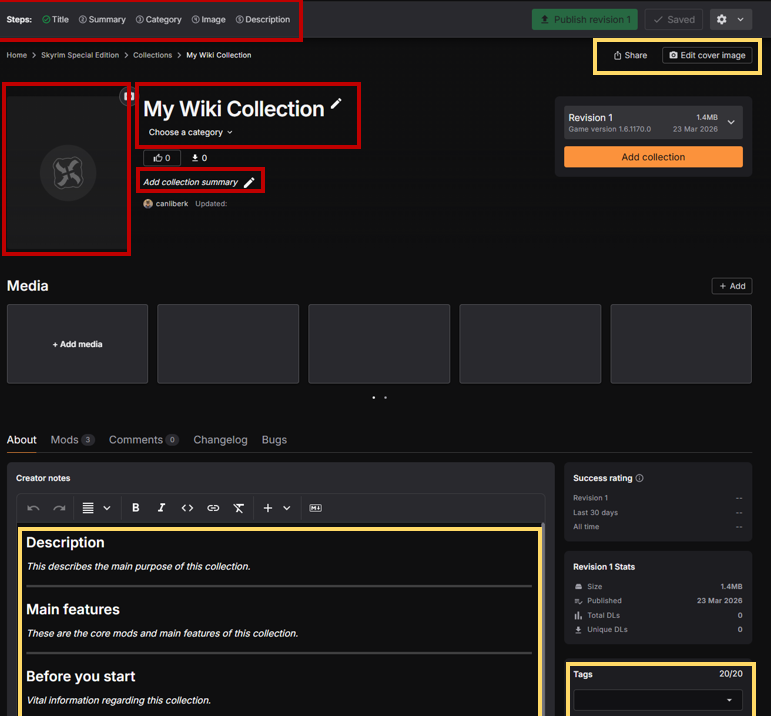
The required items are listed in the header bar, and are marked with red in the above screenshot. In order to publish a collection it must have:
- A category
- A summary
- A tile image
- A Description (unchanged draft template won't be counted)
Curators can also further enhance their collection page by adding:
- A cover image
- Images
- Videos
- Tags
- More Detailed description
Learn more about making the best use of the Collection page by checking the Good Collection Page Practices.
After you make all your changes, feel free to click on save or on share buttons.
¶ Listing a collection
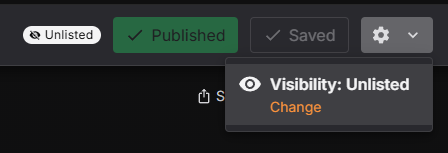
When publishing the first revision, curators can opt to share their Collection page with the entire community or to keep it private. These states are known as "Listed" and "Unlisted" respectively.
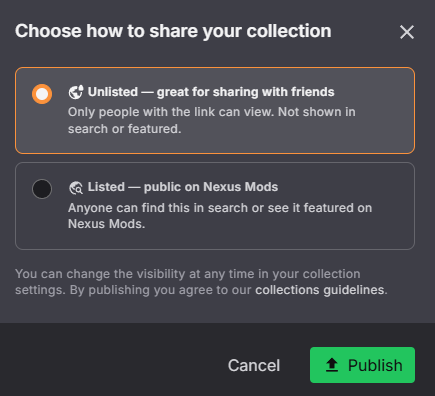
- Listed - The Collection page is visible to all users in the search results and on the list pages. Listed collections are intended to be shared with the whole community.
- Unlisted - The Collection page can be accessed by anyone with the link, but will not show up in search results or on list pages. Unlisted collection are useful for sharing the page with a small group of users.
This status can be changed at any time by using the option in the edit menu.