Use the navigation on the left or CTRL+F to find your issue.
¶ Installation
¶ Where can I find the latest CS version?
The latest stable version is always on Nexus Mods. If you want your gameplay experience with CS to be stable, use this version.
Only official CS builds will receive support. Third party builds or forks will not receive support from the official CS team. Development builds will only receive support in the relevant threads on Discord.
Some clarifications about the Jiaye/post-processing builds on the Discord server. This is not an official CS product. It has not been reviewed by the CS development team and is not designed to be performant. DO NOT ask about it outside of the channels prefixed with
#jiaye. If it says you cannot post, you need to look inside the thread where the build is downloaded from.
¶ Why are some mods labeled as CS Official?
Because CS is open source, anyone can release their own version so long as they follow the GPL-3.0 License. This is the benefit of open source.
However, only mods marked as CS Official are released by the official CS team, meet our minimum quality guidelines, and will be tested or supported by the official team on the CS Discord.
¶ How to install Community Shaders?
See the installation guide. If you are coming from ENBSeries, see the ENB Migration Guide.
¶ How do I make my game look better?
Follow our Vanilla Setup Guide to get started with getting the most out of CS.
¶ What order should CS mods be in?
CS features should have no conflicting files, so the order should not matter. If there are conflicting files, either you have done something wrong or it would be specified on the mod page(s).
¶ Compatibility
¶ Does CS support VR?
The main CS release no longer supports VR. If you are looking to use CS on VR or continue VR development, look into the Open Shaders fork.
¶ Does CS support Linux?
The development team does not officially support Linux. But there is an active Linux community that can help with installation issues on the CS Discord.
¶ Skyrim just updated! CS needs an update!
The CS development team is likely already aware and working on an update. In the meantime, you can downgrade your Skyrim using a downgrader.
For Steam users: After downgrading your game, find the <Steam Library>\steamapps\appmanifest_489830.acf file, right click it, click Properties, check Read-only then click Apply. If you want to restore the ability to update, uncheck Read-only and verify your game files to actually restore the update.
Community Shaders has several dependencies which must update first, such as CommonLibSSE, Address Library, and Engine Fixes. If you are a developer experienced with RE, please feel free to contribute.
¶ Which features are no longer compatible with new versions of CS?
Very important! If you are using a Community Shaders version newer or equal to what is specified, you must remove the feature. The following features are incompatible with the CS version specified, and anything newer. Leaving them installed will cause issues.
The following mods are still available on the Nexus for backwards compatibility with Collections/Wabbajack lists, and for those who choose to remain on an older version of CS. Do not install them if the CS version you use is equal to or exceeds the version specified below.
Open for list
- Dynamic Cubemaps - Now part of Community Shaders core (1.0+)
- Complex Parallax Materials - Now part of Community Shaders core (1.0+)
- Water Parallax - Now part of Water Effects (1.0+)
- Tree LOD Lighting - Now part of Community Shaders core (1.0+)
- Light Limit Fix - Now part of Community Shaders core (1.4+)
- Frame Generation - Now part of Upscaling (1.4+)
- Extended Translucency - Now part of Community Shaders core (1.4.7+)
- Inverse Square Lighting - Now part of Community Shaders core (1.4.7+)
- Terrain Shadows - Now part of Community Shaders core (1.4.7+)
- Water Effects - Now part of Community Shaders core (1.4.7+)
- Grass Collision - Now part of Community Shaders core (1.5+)
- Grass Lighting - Now part of Community Shaders core (1.5+)
- Screen-Space Shadows - Now part of Community Shaders core (1.5+)
- Subsurface Scattering - Now part of Community Shaders core (1.5+)
- Sky Sync - Now part of Community Shaders core (1.7+)
- Cloud Shadows - Now part of Community Shaders core (1.8+)
The numbers in parentheses indicate which version of Community Shaders the features are incompatible with. If you are using a version older than specified, then the feature is still compatible.
¶ What mods are incompatible with CS?
DO NOT ATTEMPT TO BYPASS CS COMPATIBILITY GUARDS. You will void all support and increase the likelihood of CTDs.
Open for list
- ENBSeries. Please see the ENB Migration Guide. ENB Presets are supported via the Effects 11 feature.
- Skyrim Upscaler is incompatible with Upscaling - Community Shaders.
- EVLaS and AELAS are incompatible with Sky Sync - Community Shaders.
- ReShade Helper.
- NVIDIA Reflex Support.
- TAA Sharpen.
- SSE Parallax Shader Fix and SSE Shader Tools. CS supersedes this mod. If you are not on Linux, remember to remove
d3dcompiler_47.dllfrom your root Skyrim directory. - Native Mesh Light Flicker Fix. Marked incompatible by the author and superseded by Light Limit Fix.
- Native Water Light Stabilizer is incompatible and superseded by Light Limit Fix.
- Dynamic Wetness. Incompatible with True PBR, makes wet PBR things look white.
- Multiple Amulets and Rings... Automatically (MARA). This mod is causing frequent crashes with CS.
Mods that need tweaks or have minor incompatibilities:
- Lux. Reinstall without "optimized" meshes. Optionally add the Lux CS patch.
- Skyrim Souls. Some reported transparent menus with frame generation.
- Skyrim Together Reborn. Some reported issues with upscaling.
- Alternative Conversation Camera. The black bars are incompatible; disable that feature. The rest of the mod should work fine.
- Display Tweaks. Borderless upscale is incompatible; disable that feature and use Upscaling - Community Shaders instead. Ensure that it is configured to run in borderless windowed mode, exclusive fullscreen is not supported. The rest of the mod should work fine.
- Improved Camera. Moons appear to be darkened. This apparently has been fixed in a test version on their Discord.
- ReShade. Effects that require the depth buffer are not compatible with frame generation. Disable the effects OR disable frame generation. As of version 1.4, CS no longer supports preventing ReShade from applying to the user interface. ReShade Helper is NOT compatible.
- Auto Parallax. True PBR is not compatible with the
experimentalfeature. If you use PBR materials, you should only use PGPatcher, see the Vanilla Setup Guide. - PrivateProfileRedirector. If you use this mod, use the newest version available. Versions older than 0.6.x cause issues.
- Simplicity of Snow or Simplicity of Ash. If you use PBR, it will not look correct due to these mods being multipass. Singlepass snow, like Better Dynamic Snow 3, is compatible with PBR.
¶ What mods are no longer needed with CS?
The following mods will not crash the game if left installed, but their functionality is not needed with CS or its functionality is integrated into CS.
Open for list
- Capture Warmer and Sky Reflection Fix - Both of these fixes are integrated into CS.
- Rim Lighting Removed - CS has its own adjustments to rim lighting. This mod and other similar mods are not needed.
- Splashes of Storms - These effects are already covered by CS Wetness Effects. But they look different, so it's a subjective choice. Note that Splashes of Skyrim is an entirely different mod and is not covered by CS.
- Native Mesh Light Flicker Fix - Superseded by Light Limit Fix.
- Native Water Light Stabilizer - Superseded by Light Limit Fix.
- NVIDIA Reflex Support - Included with Upscaling if you don't use FSR Frame Generation.
- TAA Sharpen - Use Upscaling instead.
If you are coming from ENB, please also check the ENB Migration Guide as it lists some ENB specific mods that are no longer needed with CS. The general rule for ENB mod compatibility is to do your due diligence and read the mod page(s) to see if the mod is no longer required with CS. Many mods "for ENB" will still work with CS, but there are many that won't.
¶ Do I still need Lux split/optimized meshes?
No, uncheck them when installing. Otherwise you will get reduced performance. Light Limit Fix defeats the purpose of these meshes.
Answer from author of Lux (03/11/2024):
These meshes main purpose is to help with engine limitations indeed so using CS light limit fix makes them optional. I'm fixing a lot of vanilla meshes when optimizing them though so you won't have these fixes anymore if you're not installing them. I'm also reworking most mods texture sets because the new meshes have different trishape structures, thus keep in mind that you'll need to delete my own texture set edits on vanilla meshes or they'll be all over the place if not using my meshes. Split meshes increase drawcalls so it's up to you. I mean if you can survive that you can just keep them. If the performance issue is a priority then you should remove them.
Be careful with injected meshes though, I'm replacing models here and there, so any mesh with non vanilla name should be kept unless you fix that directly in the patch plugin. They're often named Lux_xxx so they can't be missed. If I remember well I'm using these meshes in Blackreach (mountain stuff) and some floor I needed to replace in a player house (Skyfall Estate).
¶ Will there be DLSS frame generation/DLSS 5/FSR 4/XeSS support?
FSR 4 is not being prioritized by the CS development team due to its software requirements (Vulkan and DX11 not natively supported). It can be hacked into the game by using OptiScaler.
DLSSG (frame gen and multi-frame gen) and XeSS is being investigated as part of a shift to Vulkan, follow the CS Discord for development updates. DLSS 5 Neural Rendering may be investigated in the future when the SDK is available. If Neural Rendering were to be added, it will have curated settings, not all developer settings will be available. Since CS distributes the NVIDIA DLLs in accordance with their license, CS does not support running DLSS MFG or DLSS 5 on RTX 40 series or older.
There is no roadmap, ETA, or promise that these features will ever be implemented into CS.
¶ Will CS ever support <Skyrim version>
The CS development teams has no plans for supporting Skyrim Special Edition versions other than the latest available on Steam and 1.5.97. If a new update was just released, CS will support it, please be patient.
Be aware that there is no guaranteed long term support (LTS) for non-latest versions of Skyrim other than 1.5.97.
¶ Which ENB presets are not compatible with Effects 11?
ENB presets that rely on sky scattering or ENB Worldspace Weatherlists are not compatible with Effects 11 at this time. Encrypted ENB preset files cannot be loaded with Effects 11 as is, they must be decrypted first. CS cannot decrypt these shaders for you nor will the CS team help with decryption.
Examples:
Open for list
- Any ENB that depends on Silent Horizons 2 - Shader Core or Universal Core: These shaders are encrypted with ENB Extender and Helper. This means that Effects 11 will not load this ENB preset out of the box. If the files were to be decrypted, they can be loaded with Effects 11
- e.g., Cabbage, Dawnfire, Kauz, Picta
- Picta - Weathers of Anubis - Repainted: Currently unsupported because it depends on ENB Worldspace Weatherlists and several unsupported ENB features unique to that preset
¶ Effects 11 does not support DoF? Pre-pass?
With Effects 11, Depth of Field and pre-pass shaders were purposefully not implemented due to low quality or other issues. Use ReShade to achieve DoF or pre-pass effects. Vanilla DoF also still works.
DoF is supported in the official CS post processing feature.
¶ Configuration
¶ Can I edit settings without using the CS menu?
Yes. The first time you change any setting, CS generates the settings file SKSE/Plugins/CommunityShaders/SettingsUser.json in your overwrite folder if using MO2 (or data tab if you moved the CS overwrite files into their own mod) or the Skyrim Data folder if using Vortex. You can edit this file.
¶ I'm pressing the End key, but it ends up doing nothing!
If CS is installed, you should have a Settings > Graphics section in your pause menu. From here, you can click the Open Community Shaders Menu to manually open the menu. From here, you can adjust the menu key in the CS menu under General > Keybindings. Then you can save your CS settings with the Save Settings button icon on the top-right of the CS menu.
If the Settings > Graphics section is not in your pause menu, ensure you are using CS 1.9.0 or newer and that it is installed properly.
If your menu still is not opening, then disable any overlays you are using. Some configurations of RTSS and Fraps are known to cause issues. Remove Fraps. Disable RTSS for SkyrimSE.exe.
¶ The menu is fullscreen! How do I move it?
On the top of the Community Shaders window should be something that looks like a browser tab. You can drag this to move the menu and no longer fullscreen it.
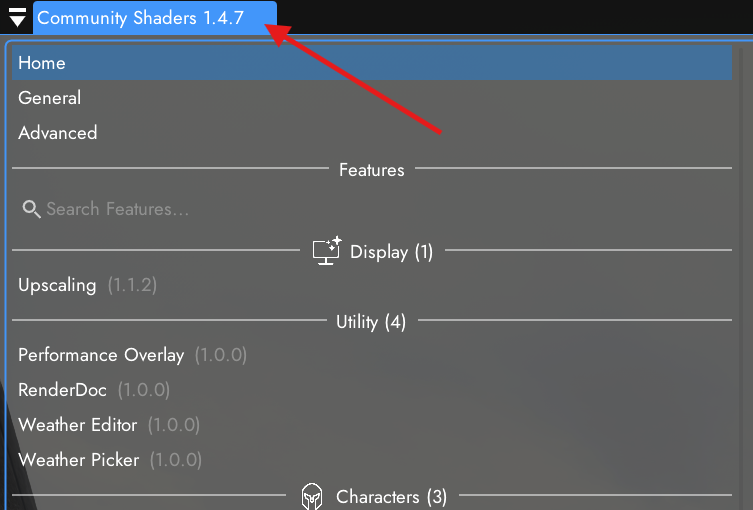
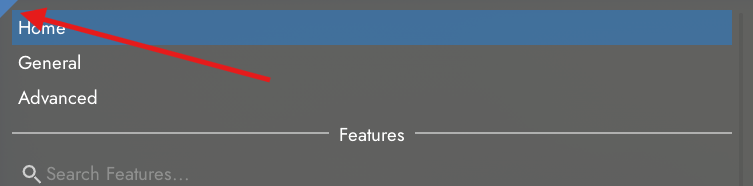
If you do not see the tab bar like in the screenshot, you may have hidden it. Click the top-left corner that is highlighted to reveal the tab bar.
If neither of the above works for some reason, you can fully reset the ImGui positioning by deleting CommunityShaders_ImGui.ini from SKSE/Plugins in your MO2 overwrite or Skyrim Data folder.
¶ Development
¶ I have a feature request
Post feature requests in the #cs-feature-request channel on Discord. Please stay on topic when within that channel. Do not post a feature request to GitHub Issues unless requested by a developer. Feature requests are typically ignored if posted elsewhere or on Nexus Mods.
¶ Can I join development?
Absolutely. Community Shaders development is done via GitHub. Review the Contribition Guidelines.
We're always looking for talented developers to join the team! Check out our GitHub wiki for contribution guidelines and join our Discord server to connect with the development team. Whether you're interested in shader programming, C++ development, or documentation, there's always something to contribute.
Feel free to share your progress and findings in the #cs-development-discussion channel on Discord, the development team can help keep your changes on track to being merged into the official CS build. Again, please review the contribution guidelines. AI assistance is fine, unverified vibe coding is not.
¶ Where can I test CS features in development?
GENERAL SUPPORT IS NOT OFFERED FOR TEST BUILDS.
New features are being tested all the time on the CS Discord server in #cs-testing. Do not report any issues in any channel prefixed with #support if you are using a test build.
Test builds are for advanced users, intended for feedback and bug testing. Test builds not acquired via the #cs-testing channel will not receive support.
Test builds are often offered as an all-in-one (AIO) download. You must uninstall/disable any previous installation of CS and CS features. The test build should not have any conflicts whatsoever in your mod manager. Please read the test thread for any other details about the build you intend to test. Please provide feedback in the same thread that you downloaded from.
¶ Errors
¶ REL/ID.h(223): Failed to open address library file
You are not using a supported version of Skyrim Special Edition. If you are using an outdated version of Skyrim, you must update. Otherwise, you need to downgrade. Community Shaders only supports versions specified in the installation guide.
¶ I get an error on startup! "Required DLL <...> was missing, will disable all hooks and features"
Please read the requirements on the Community Shaders Nexus page. Follow the installation guide. The most common issue is EngineFixes.dll, which corresponds to SSE Engine Fixes. Install it properly.
¶ I'm missing features? It says "not installed" or "file is missing"?
Download the additional features from Nexus Mods (or other sites if specified).
If the feature you are looking is not on Nexus Mods, it is NOT RELEASED. Please be patient. If you are an advanced user, you can test these features as they are developed.
¶ Shaders failed to compile! Red colored errors!
You most likely combined incompatible versions of CS and CS features, or the shader cache did not regenerate after an update. Either use the newest Nexus releases, or a single test build from Discord; never combine them.
If you are using Effects 11 and your "red colored errors" are ENB related, make sure your ENB preset is supported. Encrypted ENB presets cannot be loaded by Effects 11 and will cause errors.
Please review the
Feature Issuestab in-game to see if any installation issues were auto-detected.
If your errors are ENB related, use a different ENB preset.
If you have errors in Feature Issues, check your mod manager to see if CS or its features are conflicting with one another. CS and its features should have NO conflicts. Ensure that no deprecated features are installed. Also ensure that CS and your CS features are up to date, the Feature Issues tab should explain in detail.
Ensure that no incompatible mods are installed, including ENB or Shader Tools mods (e.g., d3d11.dll, d3dcompiler_46e.dll, and if you are on Windows d3dcompiler_47.dll). Please review the above.
If you are using Linux, check out Fluorine. Join the CS Discord and link your account for further Linux or macOS support.
¶ There are strange/broken effects with CS!
TLDR: Delete
SKSE/Plugins/CommunityShadersin overwrite, deleteShaderCacheandUnifiedWaterCachein overwrite.
-
Firstly, did CS warn you that shaders failed to compile when you started your game? If yes, read the question above.
-
Secondly, do you meet the requirements as listed in the installation guide? If you are using an Intel iGPU, it is not supported by the dev team. New contributors are welcome to attempt to fix the remaining issues.
-
Thirdly, if you are using Linux, check out Fluorine. For further support with Linux (or macOS), read the question above.
Otherwise, follow the steps below to identify whether or not you are encountering an installation issue or genuine bug.
- Check that the error is really coming from CS. Disable CS and check if the issue is gone. If the issue remains, then CS is not the issue.
- Wipe all overwrite files generated by CS. This includes the
ShaderCache,UnifiedWaterCache, andSKSE/Plugins/CommunityShadersfolders if they exist in the MO2 overwrite (or Skyrim Data folder with Vortex, or MO2 data tab if you moved them to their own mod). Do not delete theShadersfolder. Launch the game and you should be recompiling shaders; there should be no errors when complete. - You need to identify if this is a mod incompatibility. Create a minimal setup to determine if CS is causing the issue. If the issue is gone, use the binary search method to determine which mod is causing issues with CS.
- Check the CS menu to see if any features are outdated or if a new version is required. Read Community Shaders Nexus page to see which Community Shaders features are currently supported. A feature or feature version released for a newer version of CS will not work on an older version. Obsolete features will not work on newer CS versions. Also see the above.
- Read the rest of this FAQ to see if it solves your issue.
If nothing in this FAQ solves your issue and you meet the requirements for CS, please post in the CS Discord. Using the minimal setup, please provide screenshots of the issue (a real screenshot, not a picture with your phone), your hardware, and any relevant logs.
If the Discord community considers it a legitimate bug, you may be asked to create a GitHub Issue.
¶ Black screen when starting the game, but audio is still playing?
As of 1.2.0, CS has issues with exclusive fullscreen configurations, or configurations where the render resolution does not match the monitor resolution.
To prevent any issues with CS, you should run Skyrim in borderless windowed mode with the resolution set to match your monitor. With the Windows 10 Creator Update, borderless windowed mode should no longer cause performance loss and should not be a concern.
The Display Tweaks borderless upscale is explicitly unsupported as a result. Ensure that both your Skyrim INIs and your Display Tweaks configurations are rendering at your monitor resolution. If you need additional performance, please use Upscaling instead.
The installation guide briefly covers how to run your Skyrim in borderless windowed mode.
Alternatively, if you are using Display Tweaks and not confident with modifying its config files, you can download this prebuilt one that is known to solve this issue.
If you continue to have issues, double check if you are using an overlay, such as RTSS or Fraps. Some configurations of these overlays are known to cause issues with CS. Remove Fraps. Disable RTSS for
SkyrimSE.exe.
¶ Shader compilation is stuck for hours or causes CTD
Firstly, update or install the Microsoft Visual C++ Redistributable, select the X64 version.
The shader compiler comes from Microsoft and cannot be changed by the CS team. There are known issues on weaker CPUs if you max out the CPU during compiling. You can try reducing the shader compiler threads (Background Compiler Threads and Compiler Threads) as a workaround. Search for the file SettingsUser.json and edit those config values. If you have not yet successfully run CS and do not have a user config file, edit SettingsDefault.json instead. Both files are located in SKSE/Plugins/CommunityShaders in MO2's overwrite or Skyrim's Data folder. This is not best practice, and you have to change those values again after your next CS update, but it may bring you past the compilation.
Please ensure that you're running a supported version of Skyrim Special Edition. See the installation guide. Using another version of Skyrim (such as a non-latest AE version) will not be supported by the CS team.
Also, try running the game in borderless windowed mode.
Otherwise, please post the crash log to the relevant support channels on the CS Discord.
¶ Why are my eyes bright?
Use Improved Eye. Please read the mod page in case it won't work for your mod setup.
This will not fix the issue for NPCs. You will need to manually patch NPCs with better eye meshes yourself, or use NPC replacers that do not have this issue (most COTR replacers).
¶ Terrain does not look parallaxed / terrain is spiky!
- Make sure you're using terrain textures with parallax support, like Atlantean Landscapes and Terrain Blending Fix. The terrain parallax textures must have full coverage, otherwise you will have spiky terrain.
- Under the
Extended Materialstab in the CS menu, make sureEnable Legacy Terrainis checked. This is assuming you have terrain parallax textures installed; you will encounter issues otherwise. This is not required for PBR terrain textures.
¶ Wetness effects look broken, have edgy areas and are just completely wrong
Make sure that you have disabled Dynamic resolution in your Skyrim.ini [Display] section. The setting should be bEnableAutoDynamicResolution=0.
For NVIDIA users: also make sure that in NVIDIA Control Panel the option 'Antialiasing - Transparency' is set to off.
¶ My ENB preset is not loading with Effects 11!
- Is your ENB preset supported?
- Did you install your ENB preset properly as per the mod page? The
enbseriesfolder andenbseries.inifile with goes into your root Skyrim folder (recommended) or theDatafolder with your mod manager. Sometimes, your mod manager may install an ENB preset incorrectly, the recommended method is to just install the preset manually into your root folder.
¶ Performance
¶ What are the heaviest CS features?
- Screen Space GI
- Indirect Lighting (IL) is computationally expensive. If you don't care for the effect, you can disable it for big performance gains. Alternatively, you can reduce the Screen Space GI preset to
Low
- Indirect Lighting (IL) is computationally expensive. If you don't care for the effect, you can disable it for big performance gains. Alternatively, you can reduce the Screen Space GI preset to
- Effects 11 (depending on preset)
- Use a different preset if you are not happy with the performance
- Upscaling (for older systems)
- Older systems may struggle with upscaling or frame generation
- Skylighting
- If you are on a lower-end or older device and you do not care for the effect, you can remove it for some minor performance gains
This will vary from system to system. Please review the Profiling tab in the CS menu.
¶ I'm getting high "Utility" and/or "Other" usage in the CS performance overlay!
The "Shader Types" in the Performance Overlay are the categories of shaders as defined by the vanilla game. You can get a brief explanation of each by opening the CS menu to unlock the cursor, then hover over the relevant Shader Types.
The heaviest shader is typically Utility. This is a Bethesda shader type that notably covers shadows. Heavily modded setups add a lot of objects and geometry which can cast shadows, hence more Utility. The quickest way to reduce Utility usage is to remove mods that add a lot of clutter. Further optimizations can be made by adjusting the vanilla shadow settings, such as distance and resolution.
For some basic performance debugging and improvements:
- Adjust your Skyrim ini settings (reducing shadow quality/distance and draw distance is a good start)
- Avoid using mods that significantly increase draw calls (such as some location overhauls or Lux split meshes)
- Check if your game is CPU or GPU bottlenecked. CPU bottlenecks in Skyrim happen on one core, so do not look at your overall CPU usage to determine this; check core usages. Monitor your VRAM usage; if it is hitting the limit, it will cause stutters.
- Check if you are hitting an FPS limit.
Othertime will be naturally high if your game hits an FPS limit, since the game needs to wait until it's able to show the next frame. - Reduce the quality or remove some CS features. CS features do not come at no performance cost. Certain ones like Screen Space GI are quite heavy; you can go through the settings to reduce its quality or remove the feature altogether for better performance.
- Use a lower upscaling preset. This is useful if you are GPU bottlenecked.
One easy way to identify if CS is the cause of your poor performance is to monitor performance with CS on and off, with the exact same in-game conditions. If your performance is significantly worse with CS, try creating a minimal setup to see if it improves your performance.
¶ Load Time Profiler says that Community Shaders is slow to start!
If you are compiling shaders or generating water cache, it will misrepresent CS as a slow loader. Please check in a different game session after those caches are done generating.
Otherwise, the development team is open to further improvements.
¶ General troubleshooting advice
¶ Minimal setup
If the FAQ's instructions do not solve your issue(s), isolate CS to rule out mod conflicts; this is so the issue can be narrowed down to CS, CS features, or an .ini file problem.
Test with only the following mods enabled:
- Community Shaders itself
- Mods currently listed on the Community Shaders mod page under "Additional Features:"
- Any mods listed under "Nexus requirements" and "Off-site requirements" on the Community Shaders mod page, as well as any mods or programs listed as required by these mods
Note that the above is just Community Shaders and its requirements. In case requirements have changed and this FAQ has not been updated, please refer to the Community Shaders Nexus page and check the requirements there.
You can create a minimal setup by creating a new profile in MO2, pressing ctrl+a and selecting Disable, followed by enabling the listed mods.
If you're on Vortex, you can similarly create a new profile with the Profile tab on the left hand side. Then select Add "Skyrim Special Edition" Profile. This will disable all of your mods and create a clean profile. Rest assured, your mods are not disabled in the other profile; they are disabled only in the new one. You can then re-enable the relevant mods above in the new profile, then deploy.
You may also want to make sure your Microsoft Visual C++ Redistributable is on the latest version. Sometimes, when you install software, older versions of the VC Redist can get installed and overwrite the system one or something obnoxious like that.
To update or install the Microsoft Visual C++ Redistributable, select the X64 version:
https://learn.microsoft.com/en-us/cpp/windows/latest-supported-vc-redist?view=msvc-170#latest-supported-redistributable-version
¶ RenderDoc
When you report an issue on either GitHub or via the Discord support channels, a developer may ask you to provide a RenderDoc capture. You do not need to install the software separately; captures are possible from within CS itself from version 1.4.6 onward.
Please do not waste developer time. Ensure that you are using either
- The latest CS version available on official CS Nexus page. Older versions or versions not downloaded from the official page will not be supported by the official dev team.
- A test build that is being actively tested and the developer has explicitly asked for a RenderDoc capture within the context of that test build. Please ensure that the developer is on the same page as you and knows which exact test build you are using. If you are replying in a test build thread, it is implied that the build you are using is the one attached to the thread.
RenderDoc captures are large (hundreds of MBs). Please keep that in mind when creating captures.
In the CS menu, you should see a RenderDoc feature alongside the other features on the left sidebar. If you do not see that feature, you are either looking in the wrong place or you did not read the above. Go through the following steps:
- Select
Enable RenderDoc Capture. Save Settingsin the CS menu. If you do not, it won't be enabled when you restart.- Close and restart Skyrim.
- Upon launching Skyrim again, you should see a
WARNINGon the top-left of your screen. If you do not, please check if you enabled RenderDoc capturing and saved the CS settings. Your performance will be severely impacted while running with RenderDoc enabled. This is normal. - Reproduce the bug you are reporting. Once you can reproduce it, ensure that it is within view.
- Open the CS menu and navigate to the
RenderDocfeature. HitCreate Capture. Once complete, you should be able to hitOpen Capture Directoryto navigate directly to the file. - Upload the capture to a file hosting service. Discord will not support large file uploads. You will need to use a third-party file hosting service, such as Google Drive, OneDrive, Dropbox, etc.
- Reply to the developer with a public link for the file download. Ensure that the file is publicly accessible.
Since RenderDoc captures are large, CS provides a simple UI to help manage the storage usage associated with these captures. Enable RenderDoc Capture needs to be enabled in order to see this UI. Alternatively you can manage these files yourself via your file manager. Feel free to remove these captures once they have already been uploaded to a file host and the developer has acknowledged the files.
To disable RenderDoc captures after you are done, simply:
- Deselect
Enable RenderDoc Capturefrom the CS menu. Save Settingsin the CS menu.- Close Skyrim.
¶ Contributing
Get involved via the GitHub Repository and Discord Server.