After the initial Collection has been created curators are able to add, update or remove mods to prepare the next revision.
¶ Adding and removing mods
There are two ways of managing the mods included in a collection in Vortex - from the Mods section or the Collections Workshop.
We are going to be reviewing adding mods from external sources and adding bundled files to your collections in later parts of the wiki.
¶ Adding mods from the Collection Workshop
While editing a Collection in the Workshop, the table listing the mods will feature a prominent "Add more mods" button at the bottom of the list.
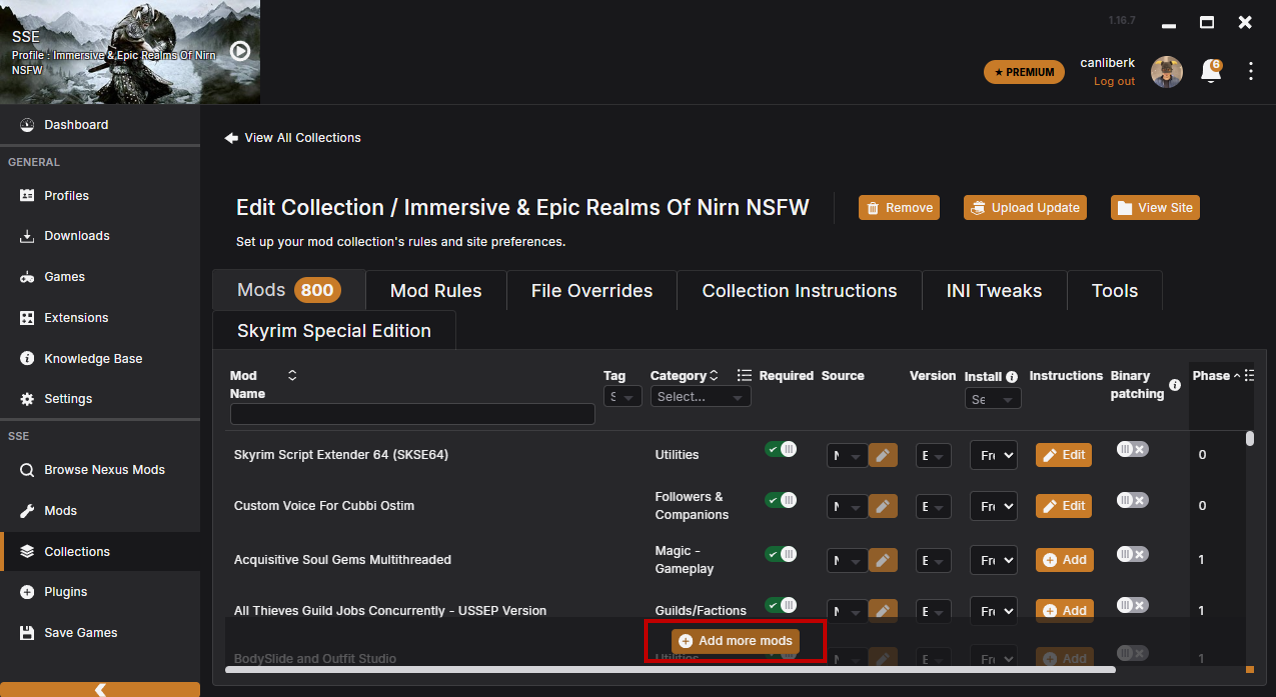
Clicking this button will bring up a new window with a list of all installed mods that aren't currently in the collection.
Tip: You can select multiple entries at once by holding down Ctrl and clicking each entry.
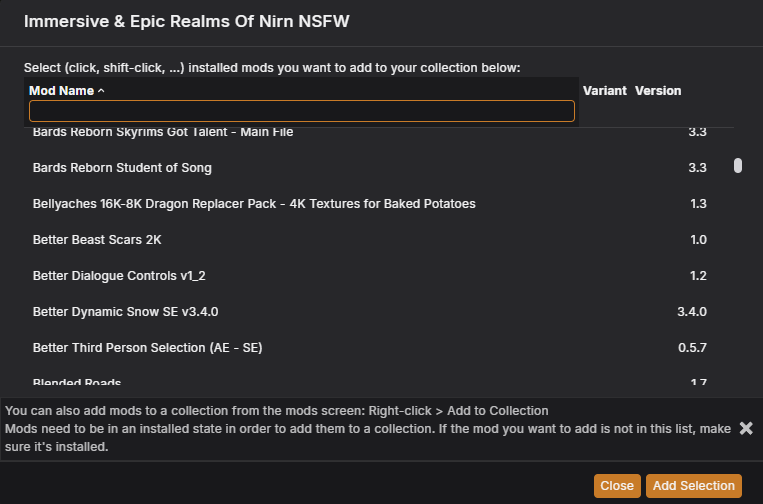
After confirming all the selection, the mods list will be updated. Newly added entries appear at the bottom of the table.
¶ Removing mods from the Collection Workshop
Each mod entry includes a "Remove" button on the right side of table to remove the mod from the Collection.
¶ Adding mods from Mods section
The Mods section can be filtered using the controls along the top of the table allowing the curator to more easily narrow down the mods they want to see.
Individual mods can be added to a Collection by use of the right-click menu.
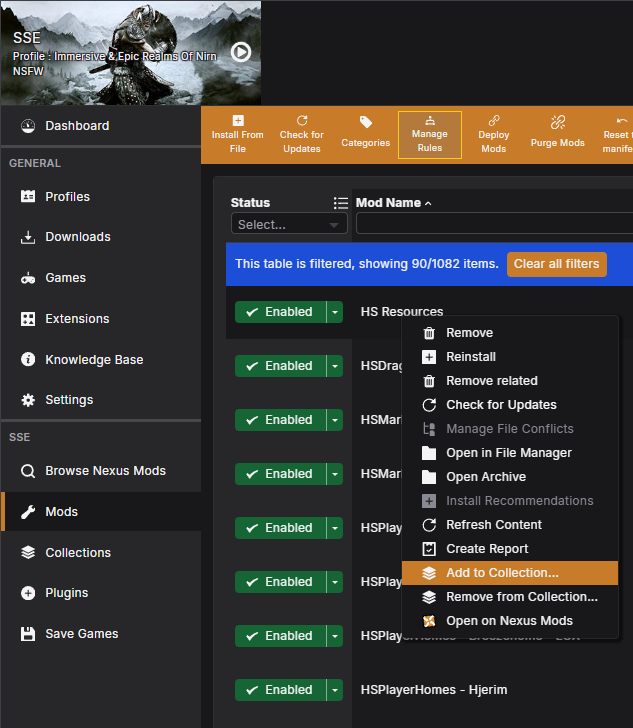
- In the sidemenu, select "Mods" to view the main mods table.
- Right-click the mod you want to add to one of your collections.
- From the context menu, select "Add to Collection..."
- In the dialogue that shows, select the collection you want to add the mod to. Please note that this selection will only show collections that this mod is not already part of!
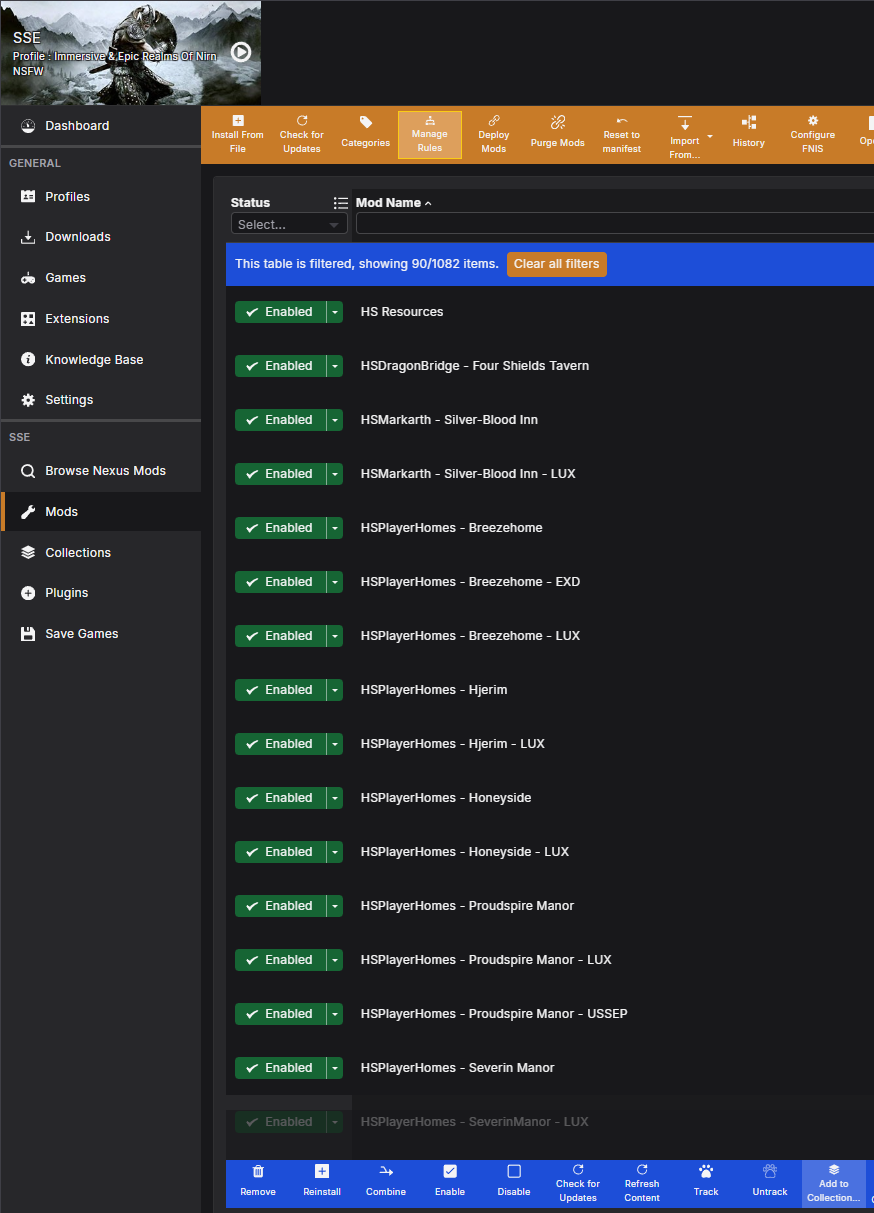
To add several mods at once this way, select multiple mods e.g. by using CTRL + Left-Click and then click "Add to Collection..." in the bottom bar.
¶ Removing mods from the Mods section
Similar to adding mods, an option to remove mods from a Collection is available from both the right-click menu and the multi-action bar when several mods are selected. You can do this both from the workshop menu and from Vortex->Mods section.
Note that if you happen to disable / remove mods from your own profile and don't apply these changes on collections workshop area, you will encounter problems since Vortex won't be able to find the relevant mod info in place. So always be careful when removing mods and double check with your collection workshop list if you can.
¶ Updating mods
Updating mods on an already existing collection looks simple, but if you rush it it can cause trouble. If you can, always double check what you are updating.
Safest way to do it is of course one by one removing old mod versions and adding the new version to your collection.
For most mods that have a proper "update chain" set up correctly on Nexus Mods, you can just update your mod and expect the entry in the collection workshop to be updated as well.
If the mod update chain is not set up correctly, or if you were using "Exact Only" version setting on Collection workshop, you should remove the old versions manually and add the new ones in place.